Introduction
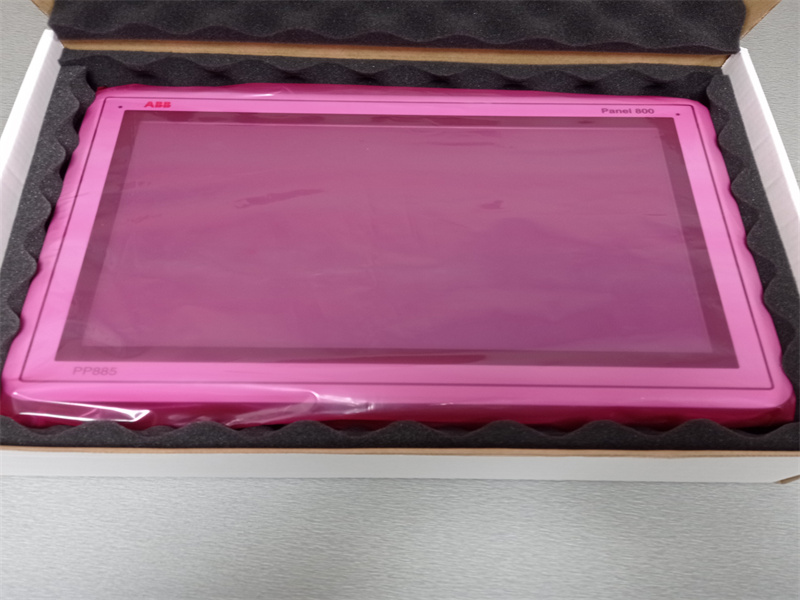
The Panel Builder software is used to configure operator panels PP871, PP874/874K PP877/877K, PP882 and PP885 from ABB.
Panel Builder contains all basic functions needed in an application. The functions are tested and developed with customer needs and preferences in focus.
Pre-defined objects in Panel Builder can be used to create complete process images, providing an overview of a complex application. You can customize the pre-defined objects or create objects of your own.
Communication drivers for a large number of controllers and automation equipment are available.
The help file assumes that the most recent versions of the system program (image) and Panel Builder are used.
|
Version |
Description |
User Documentation |
|
6.0-0 |
Initial release of the Panel 800 Version 6 |
3BSE069489-600 |
|
6.0-1 |
— Added support for panels PP882 and PP885 — Added Alarm MMS driver — Bugfixes |
3BSE069489-601 |
|
6.0-2 |
— Added support for keyboard operated panels PP874K and PP877K — Added support for PC dongles — Bugfixes |
3BSE069489-602 |
|
6.0-3 |
— Added support for panels PP885R, PP886H, PP880R, PP885M, PP885H and PP874M — Bugfixes |
3BSE069489-603 |
|
6.1-0 |
— Performance improvements — Removed support for panels PP893 and PP896 — Removed SQL CE — Added SQLite — Removed DB Viewer — Added drivers — Bugfixes |
3BSE069489-610 |
Installation
The Panel Builder software is supplied on a DVD. Double click on the file setup.exe found on the DVD, and follow the instructions to install Panel Builder.
The installation creates an icon for Panel Builder in the group named Panel Builder.
Click on Start/All Programs/ABB Compact Product Suite/Panel 800/Panel Builder to start Panel Builder.
The Panel Builder must be installed on a engineering PC.
Installation of Panel 800 Runtime
To install Panel 800 Runtime on a PC, insert the Panel Builder DVD and select to install Panel 800 Runtime. To run the program, a dongle is required that is supplied by ABB.
Panel Builder can not be run on the same PC as Panel 800 Runtime.
When using Panel 800 Runtime on a PC it is recommended to uninstall a previous Panel 800 Runtime before installing a new version.
Configured Features
Panel Builder offers the possibility to add customer-specific features in the program. This is done through the use of registration keys that are entered after the Panel Builder software installation has been done.
Project
The top folder for a specific application designed with Panel Builder is referred to as the project folder.
During runtime, project database files can be updated, for example with new recipes. This means that to completely reproduce a project that has been in operation, it may be necessary to combine source files with files retrieved from the operator panel.
File Structure
A project contains a set of files related to the functional and graphical design and a set of files related to the runtime operation of the project, where the latter is compiled from the design files.
Project Folder
When a new project is created, a folder with the project name is created as the top-level container, the Project folder. The files that define the functional and graphical design reside in the top level of the project folder. Other folders are created as a result of validation and build.
Symbols
Pictures that are used in projects are converted to .png files when the project is validated.
Pictures are resized to the largest static usage in any of the project screens, in order to save memory space in the panel. If a picture is enlarged in runtime using dynamics, the enlarged picture will have a lower effective resolution.
Project pictures are stored in the Symbols folder as a compressed folder named Symbols.zip.
Temp
The Temp folder contains intermediate build files from project compilation. The Temp folder also includes the Output folder. The Output folder contains all files needed to run the project in the target. These files are copied to an operator panel when the Download command is used. For a PC, the Export command is used to copy the necessary files to a USB stick to the runtime PC via a network connection.
It is necessary to open ports in the firewall for the runtime PC application.
Moving Design Files
To move the project files needed for the design:
1. Create a new folder for the project design files.
2. Copy all single files (files not included in any folders) as well as all folders, except the Temp folder, in the project folder.
3. Paste the files in the new folder.
Moving Application Project
The runtime project can be downloaded to the operator panel using the transfer or export commands, but can also be moved manually:
1. Create the new folder for the project files.
2. Copy the Output folder.
3. Paste it in the new folder.
Database
The database used for Panel Builder projects is of SQLite type.
The contents of the database can be managed with third-party database management tools. Panel Builder includes a database viewer object that can be used to display database contents in runtime.
Some changes in the project will lead to data being lost when the updated project is downloaded to the operator panel. These changes include:
• Renaming a recipe
• Changing the data type or name of a recipe's items or runtime data
• Renaming a data logger
• Changing the data type or name of a data logger's items
If none of the above changes are made, then all runtime data will be kept, even when switching database type.
A copy of the database can be made with the Upload Database command. Some of the databases can be exported individually in csv, comma separated values, format using the Database Export action. If possible, it is recommended to use the Database Export action rather than the Back Up Database action.
| Model No. | Part Number | Description |
|
PP845 |
3BSE042235R1 |
Panel 800 |
|
PP845A |
3BSE042235R2 |
Panel 800 |
|
PP846 |
3BSE042238R1 |
Panel 800 |
|
PP846A |
3BSE042238R2 |
Panel 800 |
|
PP877 |
3BSE069272R2 |
Panel 800 |
|
PP836 |
3BSE042237R1 |
Panel 800 |
|
PP881 |
3BSE092978R1 |
Panel 800 |
|
PP826A |
3BSE042244R3 |
Panel 800 |
|
PP886H |
3BSE069297R1 |
Panel 800 |
Tags :
Address : Unit 1904, No.96-2 Lujiang Road, Siming District, Xiamen
Phone/WhatsApp/Skype : +86 18060982349
E-mail : sales6@nseauto.com